How to surface plan policy denial messages in ServiceNow notification policies
Last updated: October 29, 2026
When a Spacelift stack fails, you may want your ServiceNow (or other webhook) incident to display the specific error or policy denial message rather than a generic "Spacelift stack X FAILED" description. This article explains how Spacelift exposes error information depending on where in the run lifecycle the failure occurs, and how to write a notification policy that captures the right message.
Understanding when error messages are available
There are two distinct failure scenarios, and each exposes error information differently:
Terraform/OpenTofu plan-phase failure (e.g., a
lifecycle.preconditioncheck): The run fails before any plan policy is evaluated. Structured fields likeerror_message,terraform_error, orfailure_reasonare not populated on the run object. The raw error text is only available in the planning logs via thespacelift::logs::planningplaceholder.Plan policy denial: The run reaches the planning stage and a plan policy explicitly denies it. In this case, the denial message is available as a clean string in
input.run_updated.plan_policy_decision.deny— no log parsing required.
Policy attachment requirements
Before writing your notification policy, keep these scoping rules in mind:
Plan policies must be attached directly to the stack (under the stack's Policies tab). They are not inherited from spaces.
Notification policies live at the space level. If your notification policy is in a different space than your stack, it will not be triggered by that stack's runs. Make sure both are in the same space, or move the policy accordingly.
Notification policy that handles both scenarios
The following notification policy dynamically sets short_description to the plan policy denial message when one exists, and falls back to a generic stack-name-based message otherwise. The full planning log is included in the description field for additional context.
package spacelift

import future.keywords.if
import future.keywords.in

run_url := sprintf(
    "https://%s.app.spacelift.io/stack/%s/run/%s",
    [input.account.name, input.run_updated.stack.id, input.run_updated.run.id],
)

failed {
    input.run_updated != null
    input.run_updated.run.type == "TRACKED"
    input.run_updated.run.state == "FAILED"
}

short_desc = msg {
    count(input.run_updated.plan_policy_decision.deny) > 0
    msg := concat("; ", input.run_updated.plan_policy_decision.deny)
} else = msg {

webhook contains {
    "endpoint_id": "your-webhook-endpoint-id",
    "method": "POST",
    "headers": {
        "Content-Type": "application/json",
        "Accept": "application/json",
        "Authorization": "Basic <your-auth-token>",
    },
    "payload": {
        "status": "FAILED",
        "short_description": short_desc,
        "description": "spacelift::logs::planning",
        "assignment_group": "Your Assignment Group",
        "u_stack": input.run_updated.stack.name,
        "u_run_url": run_url,
    },
} if {
    failed
}

sample {
    true
}
Replace your-webhook-endpoint-id, the Authorization value, and assignment_group with your actual values before deploying.
How the short_description logic works
If the run was denied by a plan policy,
input.run_updated.plan_policy_decision.denywill contain the denial message (e.g., "User already has a Cloud PC. Cannot create another."). Becausedenyis a set and sets in Rego are unordered, the policy joins all denial messages into a single string rather than picking one.If no plan policy denial exists (e.g., the run failed during Terraform planning before any policy ran), the policy falls back to a dynamic message: "Spacelift stack <stack-name> FAILED".
Note: The spacelift::logs::planning placeholder in the description field will include the full raw planning log output, which may be more verbose than a targeted error message. It is best used for the description (long text) field rather than short_description.
Debugging your policy with the Policy Workbench
You can test your notification policy using sampled inputs from the Policies section in Spacelift:
Navigate to Policies and open your notification policy.
Click the Samples tab.
Find the relevant sample and click Show details to view the input data.
Use that input to test your policy logic in the policy workbench.
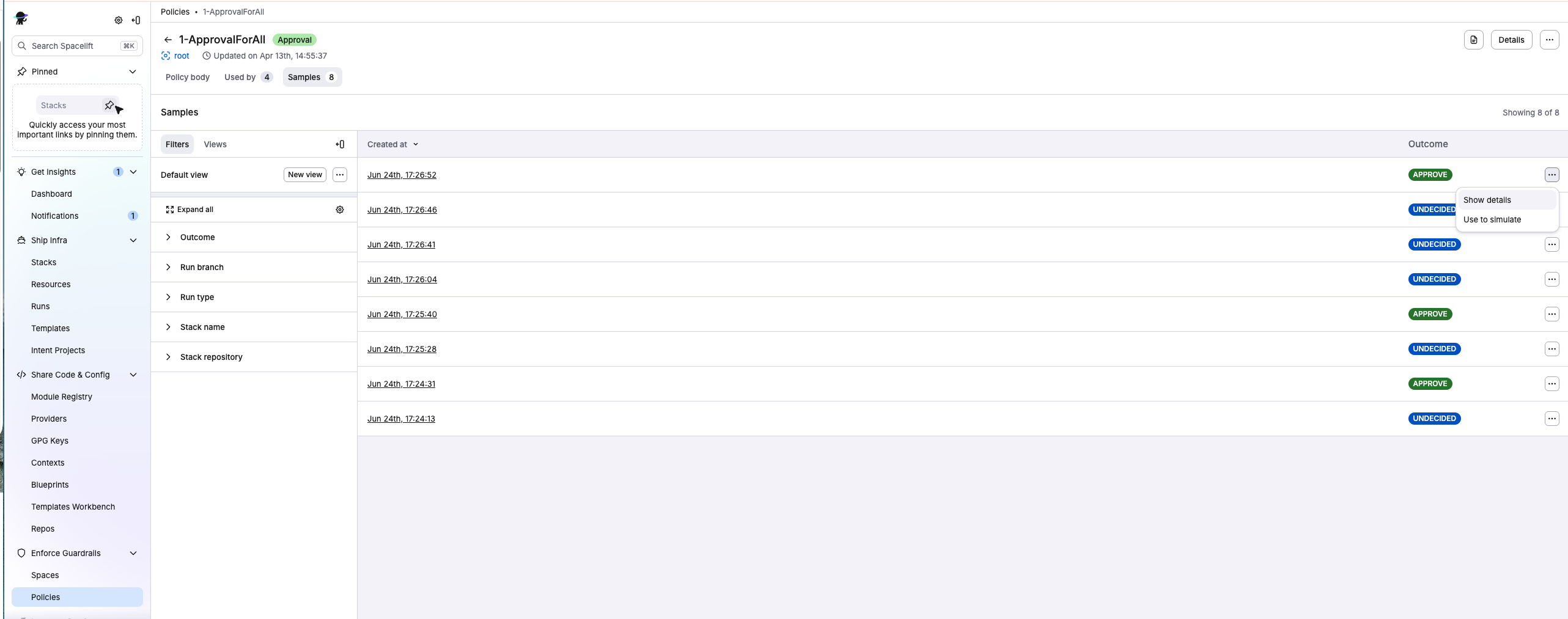
If the Samples tab shows 0 evaluation records, it means the policy has not yet been evaluated against a run that reached the planning stage successfully.